Custom Plane
When Global, Local, Cursor, or Normal don’t give you the plane you need, define an exact mirror plane by snapping to real geometry. The custom-plane picker is an interactive modal that lets you aim at any visible mesh and read its orientation and position straight off the surface.
Open it two ways:
- Press
Spacewhile the Mirror tool is active. - Click the eyedropper Pick button shown inside the Orientation or Pivot popover when either is set to Custom.
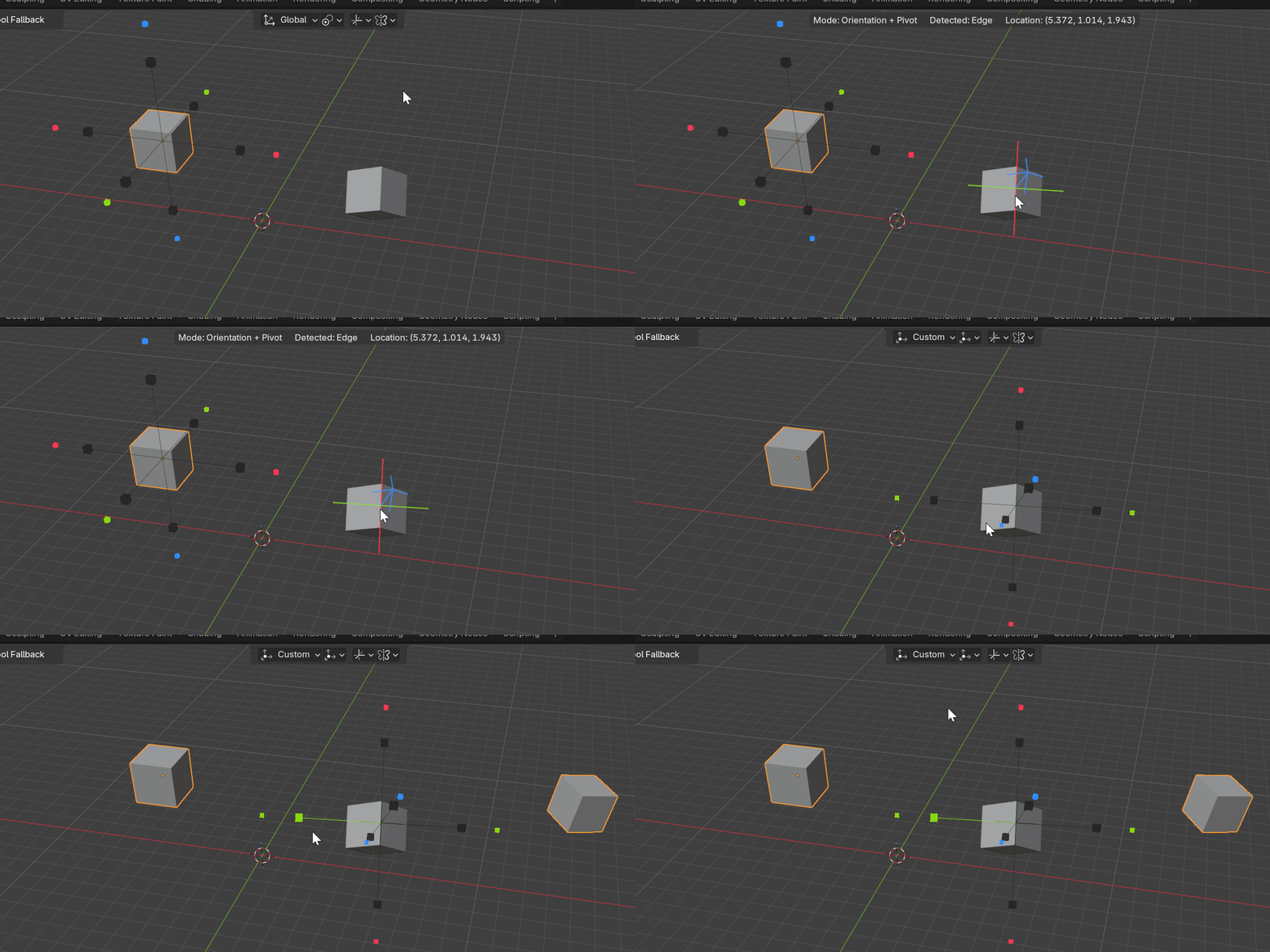
Picking
Aim at any visible mesh. The element under the cursor — vertex, edge, or face — is highlighted, and a live preview shows the plane you would set:
- A Z normal arrow for the plane direction.
- An X/Y cross laid on the plane.
While picking, the viewport header reports three things so you always know what you’re about to write:
| Field | Meaning |
|---|---|
| Mode | Whether you’re picking for Object or Edit mesh |
| Detected | The element type under the cursor (vertex / edge / face) |
| Location | The world position of the pick |
Choosing what you set
A pick can write the Orientation, the Pivot, or both. Press Tab to cycle the write target:
- Orientation + Pivot — set the plane angle and its position.
- Orientation only — keep your current pivot, take just the angle.
- Pivot only — keep your current angle, take just the position.
This lets you, for example, grab an angle from one face and a pivot point from a different vertex in two quick picks.
Confirm or cancel
LMBorSpaceconfirms the pick.RMBorEsccancels and leaves your previous values untouched.
Confirming stores the picked values and switches the matching popover(s) to Custom automatically — so the mirror plane is immediately live on the gizmo.
Per-mode storage
Object Mode and Edit Mesh keep separate Custom values. A plane you pick in Object Mode won’t overwrite the one you set in Edit Mesh, and vice versa. Switch modes and each remembers its own custom plane.
Next
Continue to Options & Preferences.