Gizmo Interface
The gizmo is your fastest way to mirror straight in the viewport. It appears whenever the Mirror tool is active — and in Object Mode, whenever at least one mesh object is also selected.
The six arrows map to the world (or chosen) axes:
- X = red
- Y = green
- Z = blue
Each axis has a + and a - arrow. Arrows fade out as they point straight toward or away from the camera, so the gizmo stays readable from any angle. Which axes the arrows follow depends on your Orientation, and where the plane sits depends on your Pivot.
Object Mode gizmo
In Object Mode the gizmo gives you two separate clickable targets per direction: an outer arrow and an inner box. They do different things.
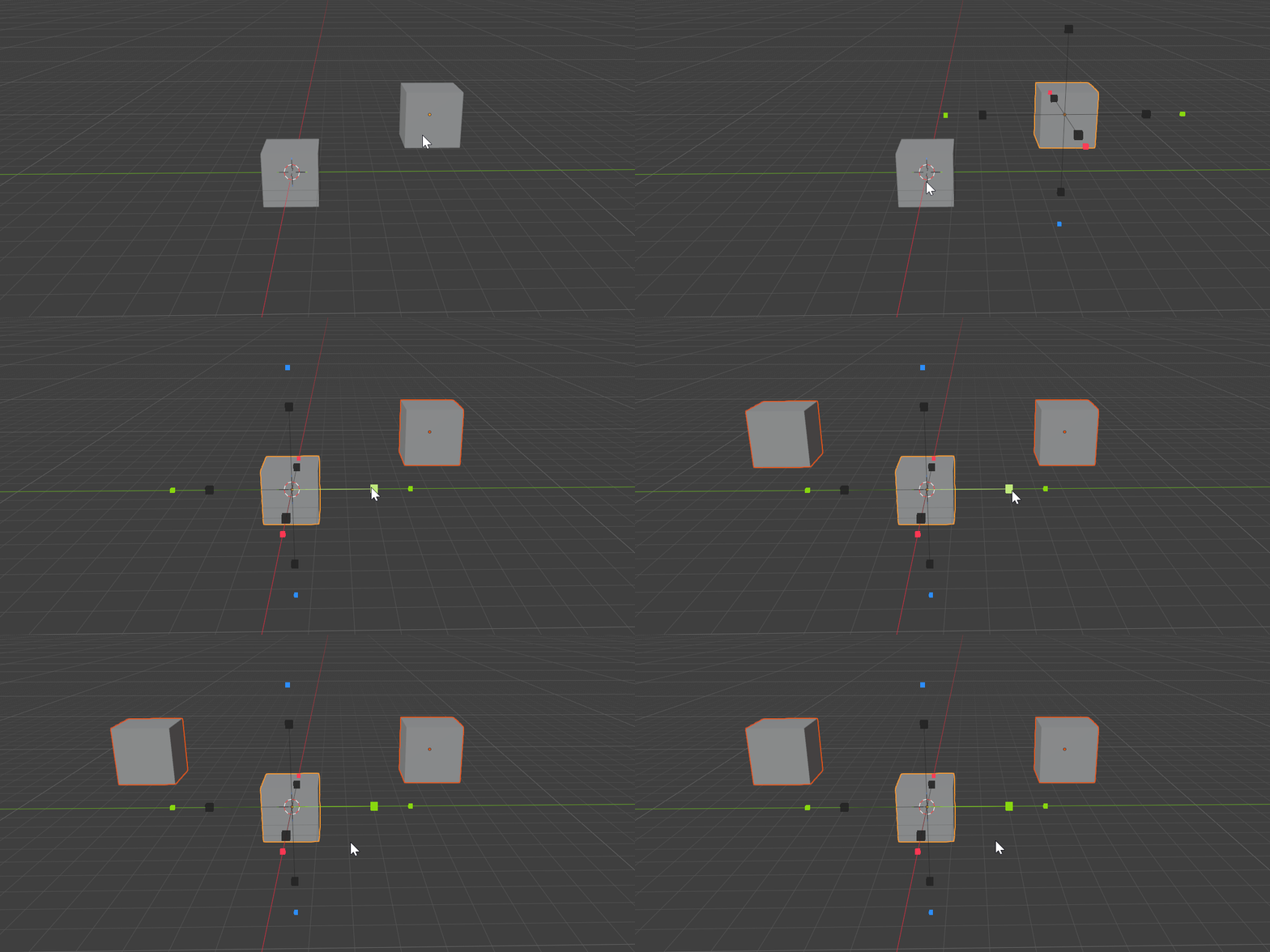
Clicking any gizmo runs an undoable operator and opens the redo panel, which lists every affected object as a checklist tagged [New] or [Edit]. Untick any object you want to exclude.
Outer arrows — add a new modifier
The outer arrows ADD a brand-new Mirror modifier to the END of the modifier stack. Every click stacks another modifier on top.
Use this to build compound, multi-stage mirrors — for example, mirror across X, then add a second stage across Y.
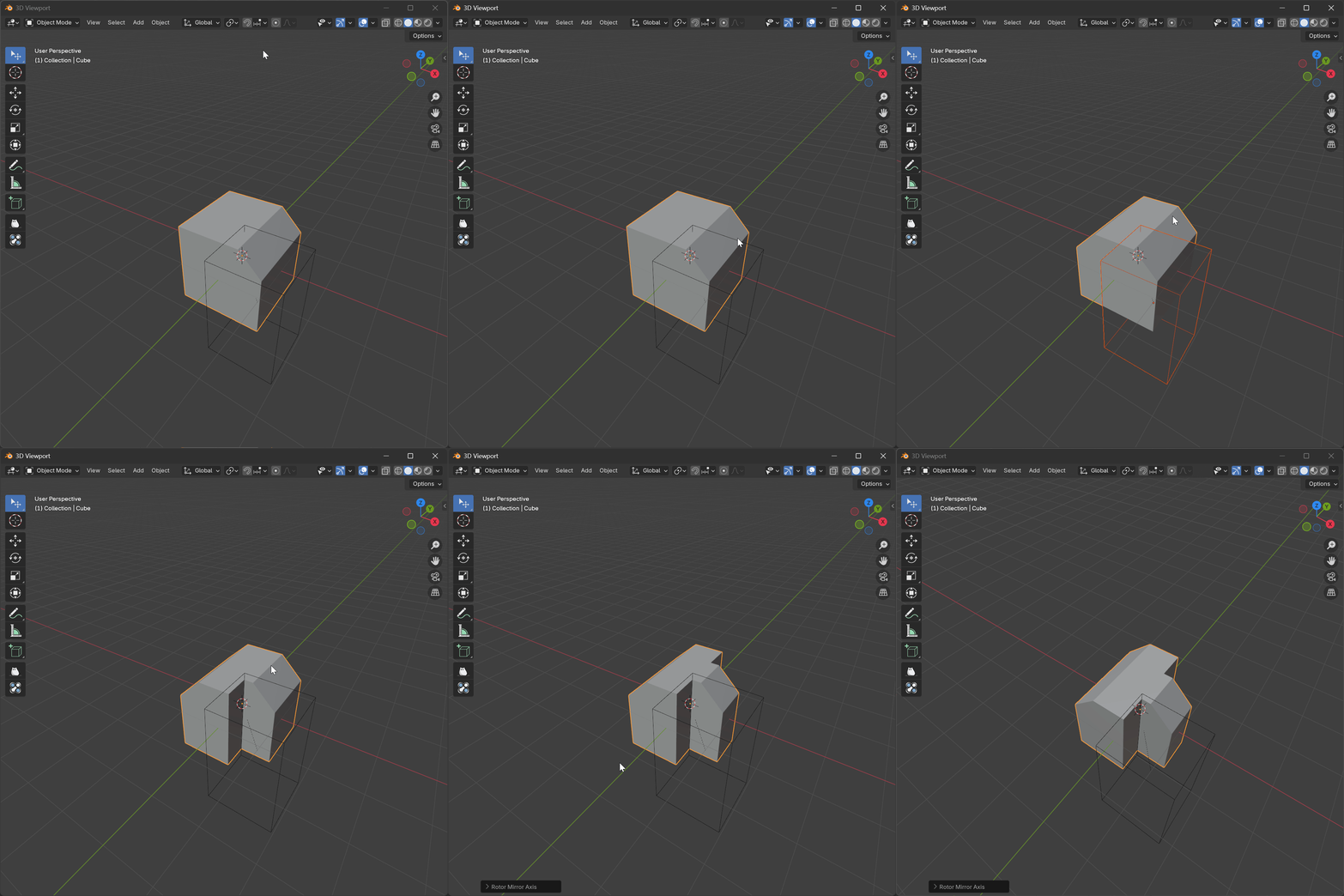
Inner boxes — the pinned modifier
The inner boxes SET (toggle) axes on a single PINNED Mirror modifier — your one live, editable mirror.
- Click an axis to toggle it on.
- Click an active axis again to cycle its bisect/flip states.
- Keep clicking and the axis eventually turns off; when all axes are off, the pinned modifier is deleted.
Use the inner boxes when you want one mirror you can keep adjusting, instead of stacking new modifiers.
Collection arrows
When Element is set to Collections, yellow collection arrows replace the standard ones. Clicking one instances the whole collection, mirrored, through an empty — so the original collection stays a single editable source.
Edit Mesh gizmo
In Edit Mesh the gizmo sits on the mirror plane derived from your current selection — its Pivot and Orientation come from what you have selected.
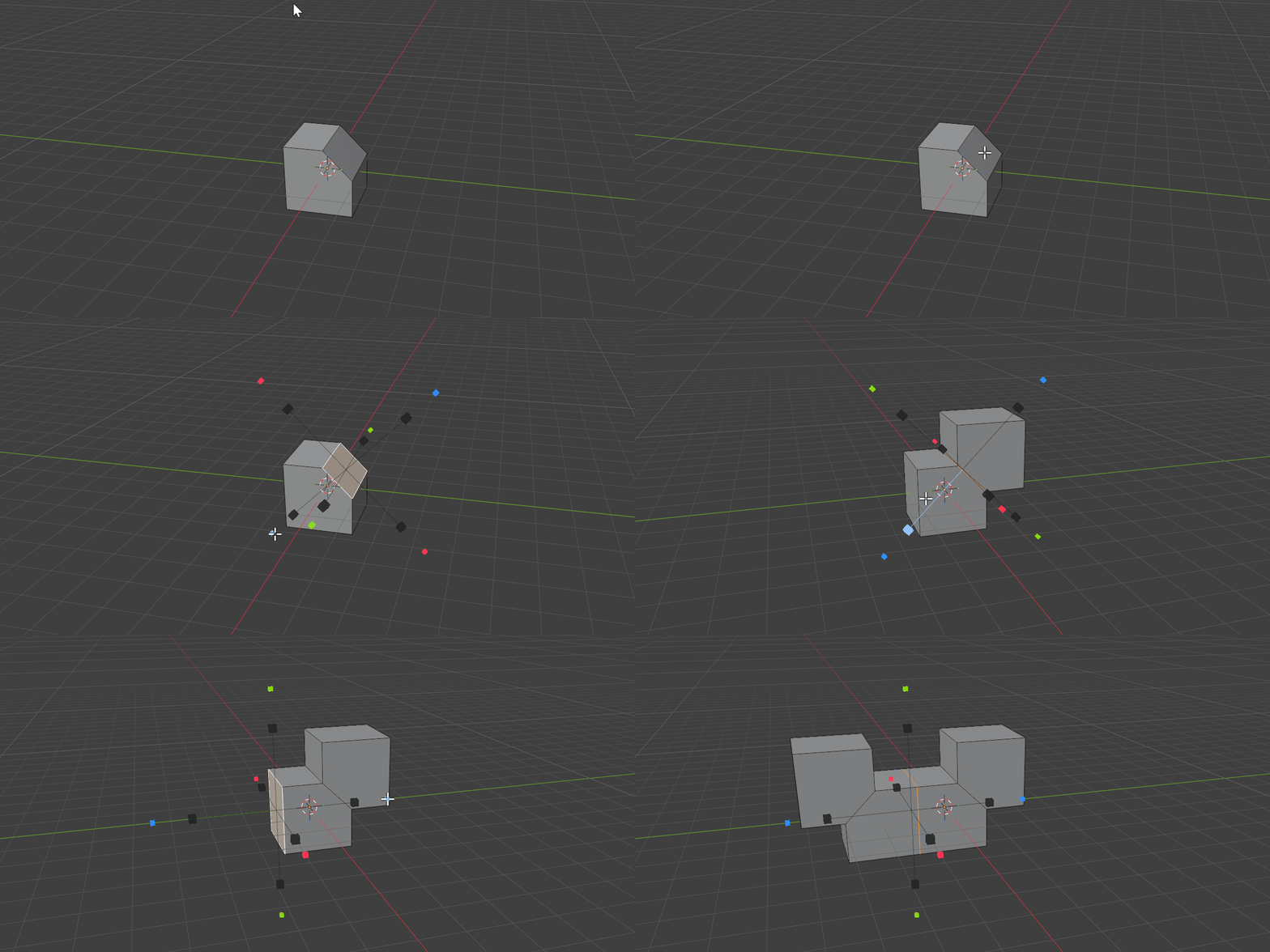
There are two kinds of handles:
- Handles (the arrows) mirror only the SELECTED geometry across that axis.
- Dots (the small boxes) mirror the FULL MESH.
With Merge enabled, the new geometry is welded to the original at the seam, within the Merge Distance. See Edit Mode for the full workflow.
Multi-selection
In Object Mode, select several objects before clicking a gizmo to mirror them together. They are mirrored as a group relative to the chosen Pivot — so a single click can flip an entire arrangement around the active object origin, the world origin, the cursor, or a custom point.
Next
Continue to Edit Mode to see how the gizmo symmetrizes live mesh geometry.