Orientations
The Orientation controls which axes the mirror plane uses. Switch it with the Orientation popover on the right side of the tool header, or cycle to the next option with Q while the Mirror tool is active.
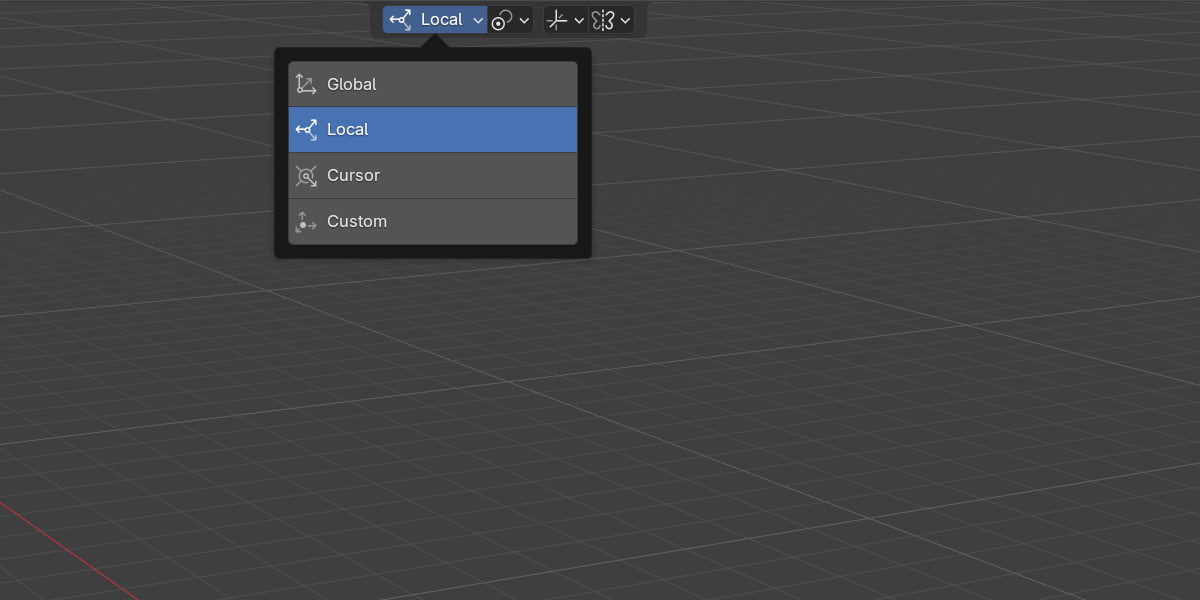
Object Mode offers Global, Local, Cursor and Custom. Edit Mesh adds Normal and uses it as its default. The chosen orientation defines the direction of the mirror axes; where the plane actually sits is controlled separately by the Pivot.
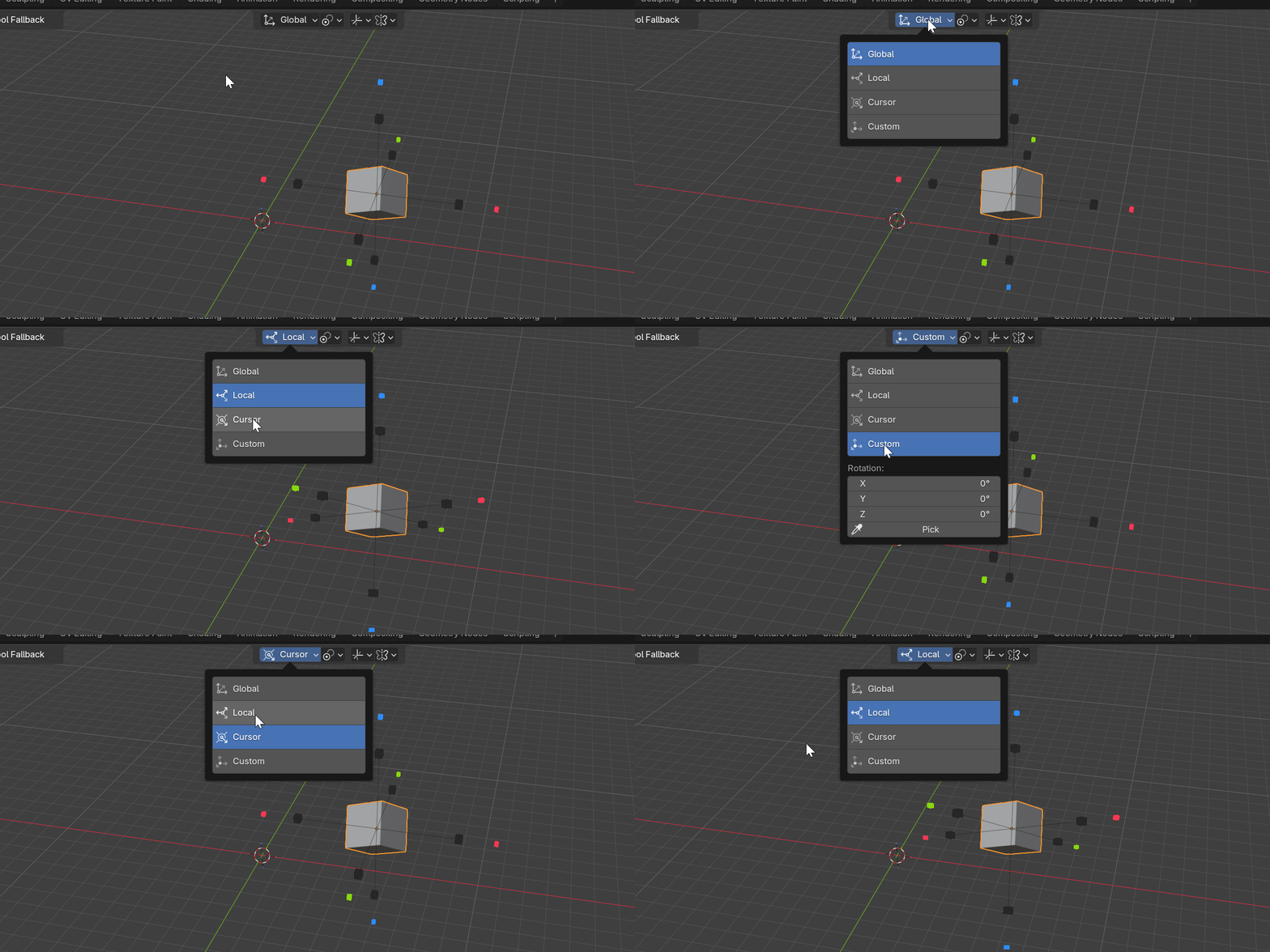
Global
Uses the world axes, identical for every object no matter how it is rotated. X, Y and Z always point along the world grid.
Reach for Global when you want a predictable, world-aligned mirror that ignores object rotation.
Local
Uses the active object’s (or selection’s) own axes, so the mirror follows the object’s rotation. This is the Object-mode default.
Local is what you want most of the time when working on a single rotated object: the mirror stays aligned to the geometry rather than the world grid.
Cursor
Uses the rotation of the 3D cursor, letting you mirror across arbitrary angles. Orient the cursor (for example with a custom transform or by snapping it to an element), then set Orientation to Cursor.
Use Cursor when you need a specific angle that is aligned to neither the world nor the object.
Normal
Edit Mesh only, and the Edit-mode default. The plane takes its orientation from the selection normal, so the mirror automatically aligns to whatever faces, edges or verts you have selected.
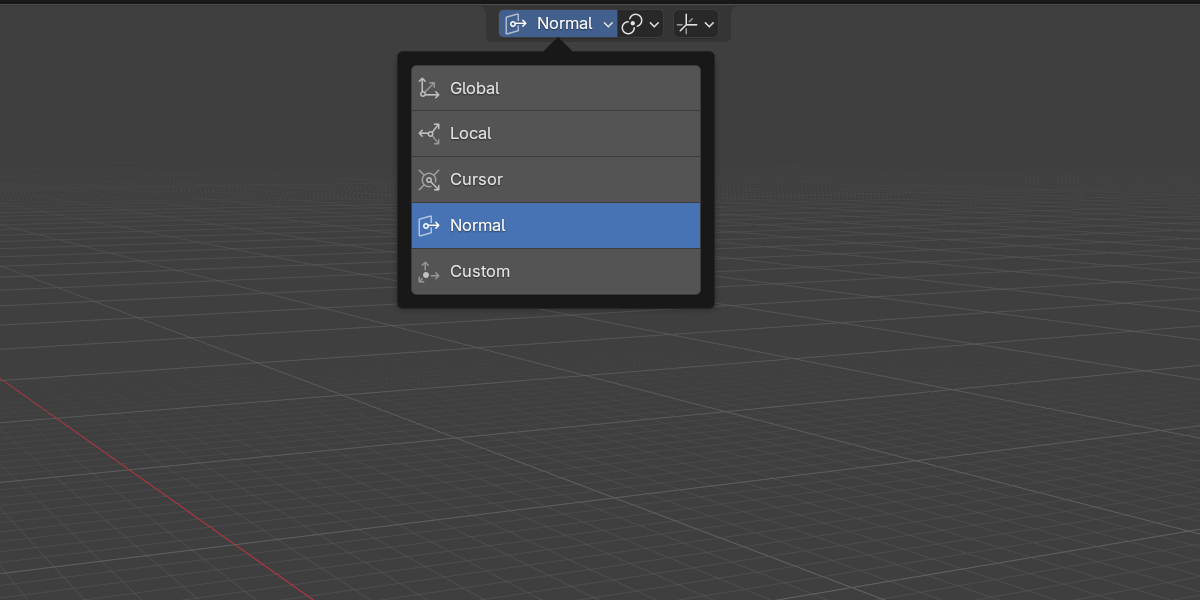
This is the natural choice for symmetrizing geometry: select the loop or face that defines the seam and Normal orients the plane to match. See Edit Mode for the full edit-mesh workflow.
Custom
A plane you define yourself with the Space picker, or with the eyedropper Pick button shown inside the Orientation popover when it is set to Custom. Aim at any visible element, confirm, and the picked orientation is stored and reused.
Custom orientations are stored separately for Object Mode and Edit Mesh. Use Custom for one-off planes that match real geometry in your scene. See Custom Plane for the picker details.
Quick tips
| Orientation | Use it when |
|---|---|
| Global | You want a world-aligned mirror that ignores rotation. |
| Local | You are mirroring a single rotated object along its own axes. |
| Cursor | You need an arbitrary angle set by the 3D cursor. |
| Normal | (Edit Mesh) You want the plane to follow the selection. |
| Custom | You want a plane matched to existing geometry via the picker. |
- Press
Qto cycle through the available orientations without leaving the viewport. - Object Mode has no Normal option; Edit Mesh has no separate object-axis distinction because it works from the selection.
Next
Continue to Pivots to control where the mirror plane passes through your geometry.