Pivots
The Pivot sets where the mirror plane passes through. While the Orientation decides the angle of the plane, the Pivot decides its position — the point the mirror reflects around.
Switch pivots from the Pivot popover in the tool settings header, or cycle to the next option with E while the Mirror tool is active.
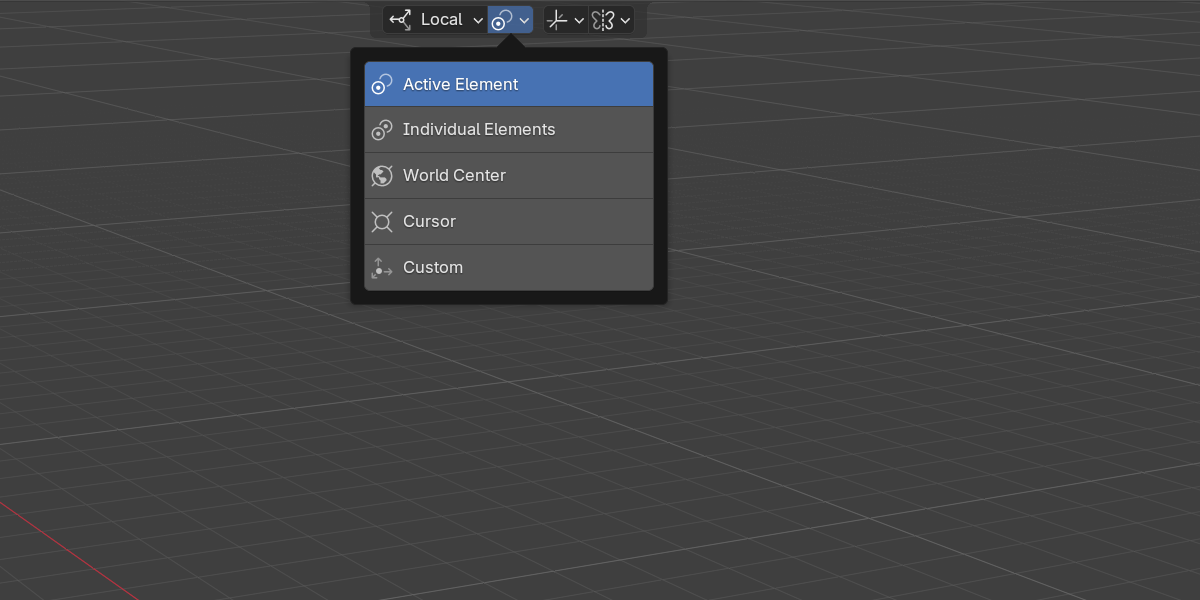
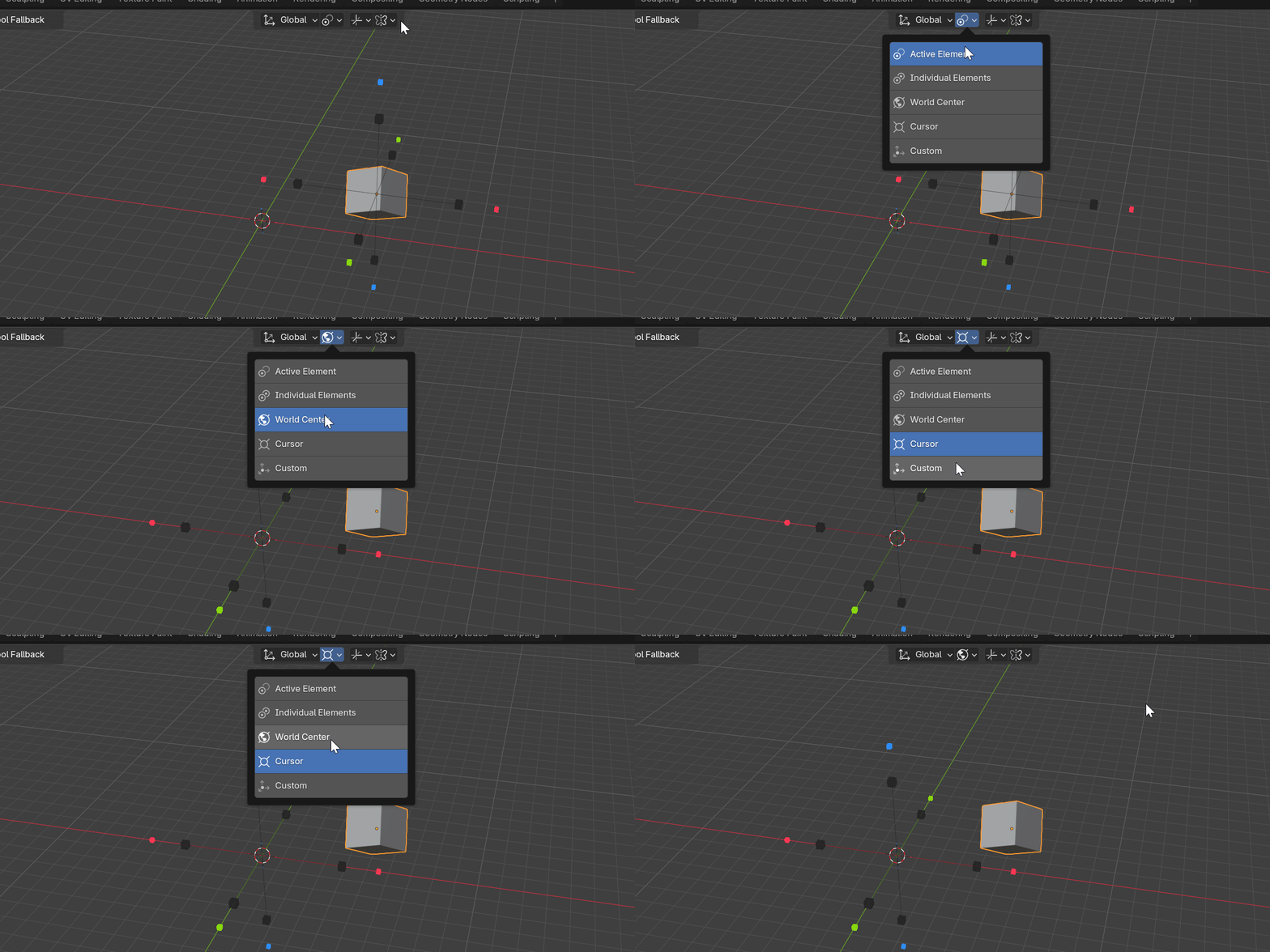
Object Mode Pivots
Active Element
The default. The mirror plane passes through the active object origin. All selected objects are mirrored around that single point.
When Pivot is Active Element, the Include Active option in the Tool Interface popover decides whether the active object is itself mirrored, or kept as the still center while the rest of the selection mirrors around it.
Individual Elements
Each object mirrors about its own origin. The plane is positioned per object, so a selection of many objects each reflects in place rather than around a shared point.
Use when: you want every object symmetrized on the spot, independent of the others.
World
The plane passes through the world origin 0, 0, 0, regardless of where the objects sit.
Use when: mirroring across the scene center — the classic left/right symmetry setup.
Cursor
The plane passes through the 3D cursor. Move the cursor to place the mirror anywhere in the scene.
Use when: you need a precise, repositionable pivot without changing object origins.
Custom
The plane passes through a point you picked with the Custom Plane picker. Pivot and orientation can be picked together or independently.
Use when: snapping the mirror to a vertex, edge, or face on existing geometry.
Edit Mesh Pivots
In Edit Mesh the Mirror tool symmetrizes geometry, and the pivot positions the symmetry plane derived from your selection. See Edit Mode for how the gizmo handles and dots behave.
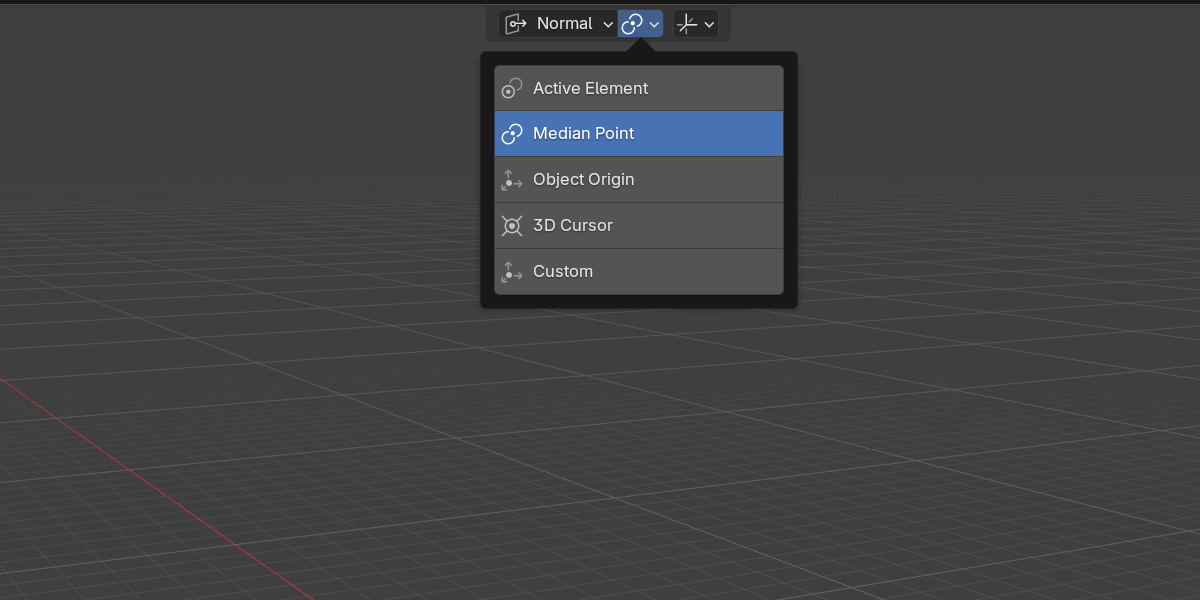
- Active Element — the plane passes through the active vertex, edge, or face.
- Median Point — the default. The plane passes through the median of the current selection.
- Object Origin — the plane passes through the object’s origin.
- 3D Cursor — the plane passes through the 3D cursor.
- Custom — a point picked with the Custom Plane picker. Custom values are stored separately for Object and Edit mode.
Pivot Reference
| Pivot | Object Mode | Edit Mesh | Plane passes through |
|---|---|---|---|
| Active Element | default | yes | Active object origin / active element |
| Individual Elements | yes | — | Each object’s own origin |
| Median Point | — | default | Median of the selection |
| World / Object Origin | World | Object Origin | World origin / object origin |
| 3D Cursor | Cursor | yes | The 3D cursor |
| Custom | yes | yes | A point you picked |
Quick Tips
- Press
Eto cycle the Pivot without leaving the viewport. - Pair a pivot with an Orientation to fully define the mirror plane — see Orientations.
- World pivot plus Global orientation is the reliable scene-center symmetry combo.
- With Active Element, remember Include Active in Tool Interface controls whether the active object mirrors or stays put.
- Use the Cursor pivot when you need a pivot you can nudge between clicks.
- For pivots that snap to real geometry, reach for the Custom option.
Next
Define your own plane by hand with the Custom Plane picker.