Tool Interface
The Mirror tool is a single Blender tool that works in both Object Mode and Edit Mesh. This page covers how to activate it and what each setting in the top tool-settings bar does.
Activating the Tool
Press Alt+X to toggle Mirror on. It works the same way in both Object Mode and Edit Mesh.
- The first
Alt+Xfrom another tool remembers that tool. - Pressing
Alt+Xagain (orEsc) returns you to the remembered tool. - If no tool was remembered, it drops you to the Select Box tool.
You can also pick it from the toolbar. Press T to reveal the toolbar; Mirror is registered as a single tool (not a grouped or cycling tool). If the Blockout addon is installed, Rotor places itself directly under Blockout.
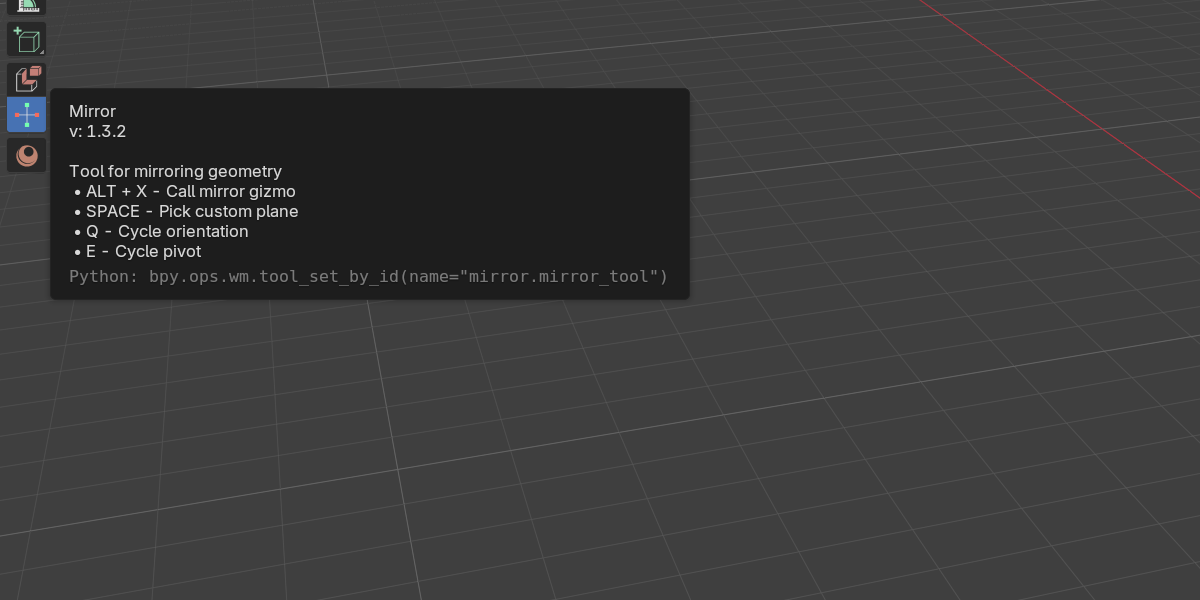
While the tool is active, a small keymap is available:
| Key | Action |
|---|---|
Space |
Pick custom plane (interactive picker) |
Q |
Cycle Orientation to the next option |
E |
Cycle Pivot to the next option |
Esc |
Return to the previous tool (Tool Fallback) |
Header Settings (Object Mode)
The top tool-settings bar reads left to right, starting with the label Mirror:.
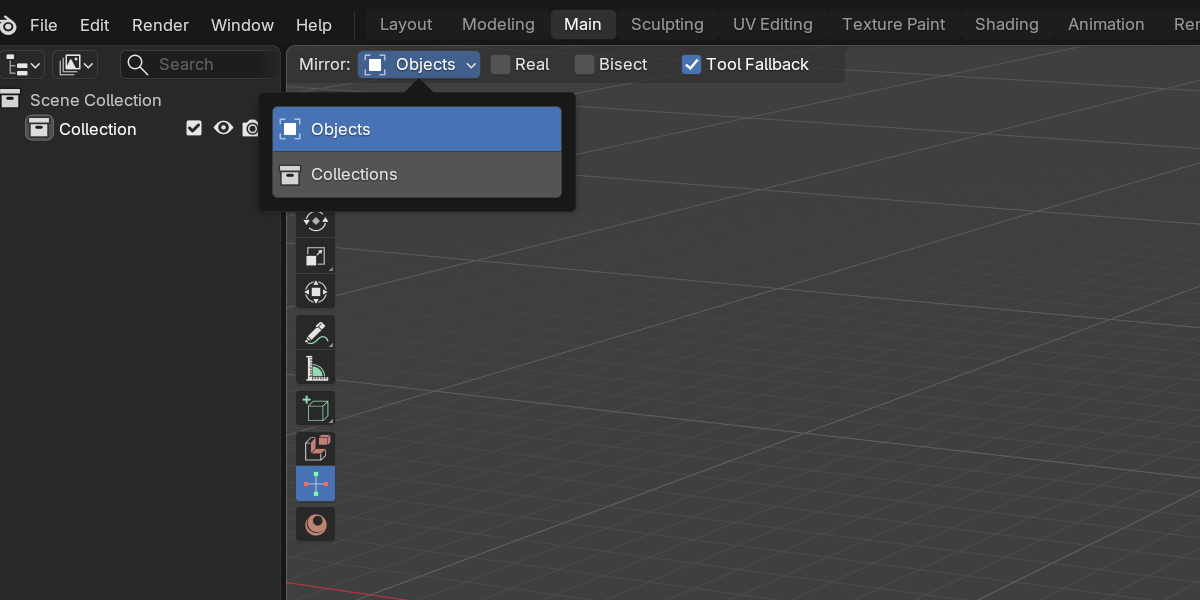
- Element — a popover that switches between Objects and Collections. See Elements below.
- Real — instead of adding non-destructive Mirror modifiers, Rotor creates real, duplicated, flipped copies of the objects. It is always additive.
- Bisect — cuts the geometry at the mirror plane so the mirrored half meets cleanly.
- Tool Fallback — see Tool Fallback below.
On the right side of the bar:
- Orientation popover — Global / Local / Cursor / Custom. The object-mode default is Local. See Orientations.
- Pivot popover — Active Element / Individual Elements / World / Cursor / Custom. The default is Active Element. See Pivots.
- Tool Options popover (axis-empty icon) — Include Active plus the empty shape and size used for Collection mirrors. See Options & Preferences.
- Mirror Options popover (mirror-modifier icon) — standard Blender Mirror-modifier settings. Disabled when Real is enabled, because no modifier is created. See Options & Preferences.
Header Settings (Edit Mesh)
In Edit Mesh the bar is shorter. After the Mirror: label:
- Merge — welds the new geometry to the original at the seam, within the Merge Distance.
- Tool Fallback — same behavior as Object Mode.
On the right:
- Orientation popover — Global / Local / Cursor / Normal / Custom. Normal is added here and is the edit-mode default. See Orientations.
- Pivot popover — Active Element / Median Point / Object Origin / 3D Cursor / Custom. Median Point is the default.
- Tool Options popover — Merge plus Merge Distance.
See Edit Mode for the full edit-mesh workflow.
Elements
The Element popover chooses what gets mirrored.
- Objects — the default. Each gizmo click adds (or edits) a Mirror modifier on the selected mesh objects.
- Collections — Rotor instances the whole collection, mirrored, via an empty. The empty’s display shape and size are configurable in the Tool Options popover. Yellow collection arrows replace the normal gizmo while this is active.
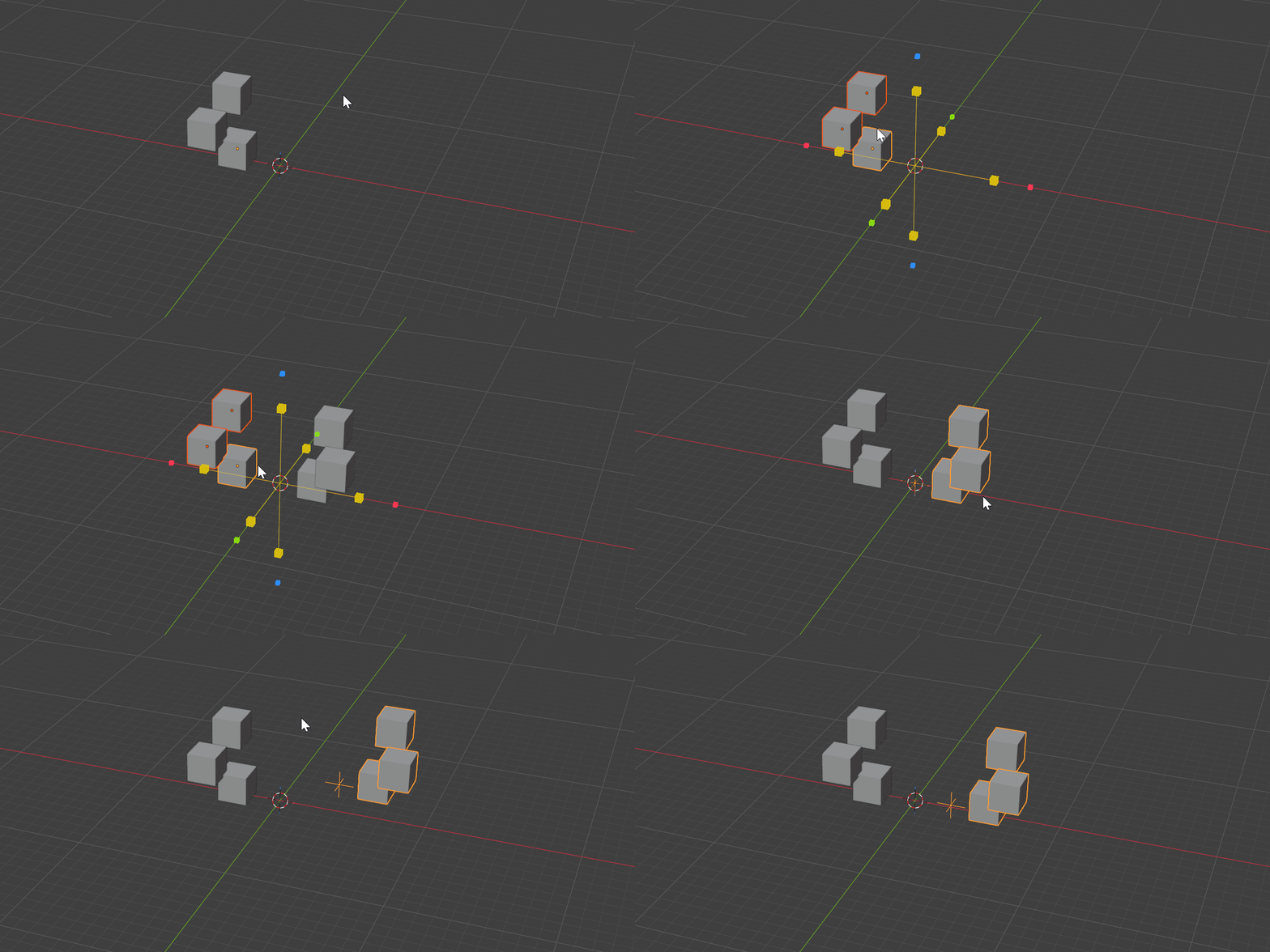
Tool Fallback
After a mirror operation, Rotor automatically switches back to the tool you were using before activating Mirror. It is on by default, and pressing Esc triggers it manually.
The Redo Panel
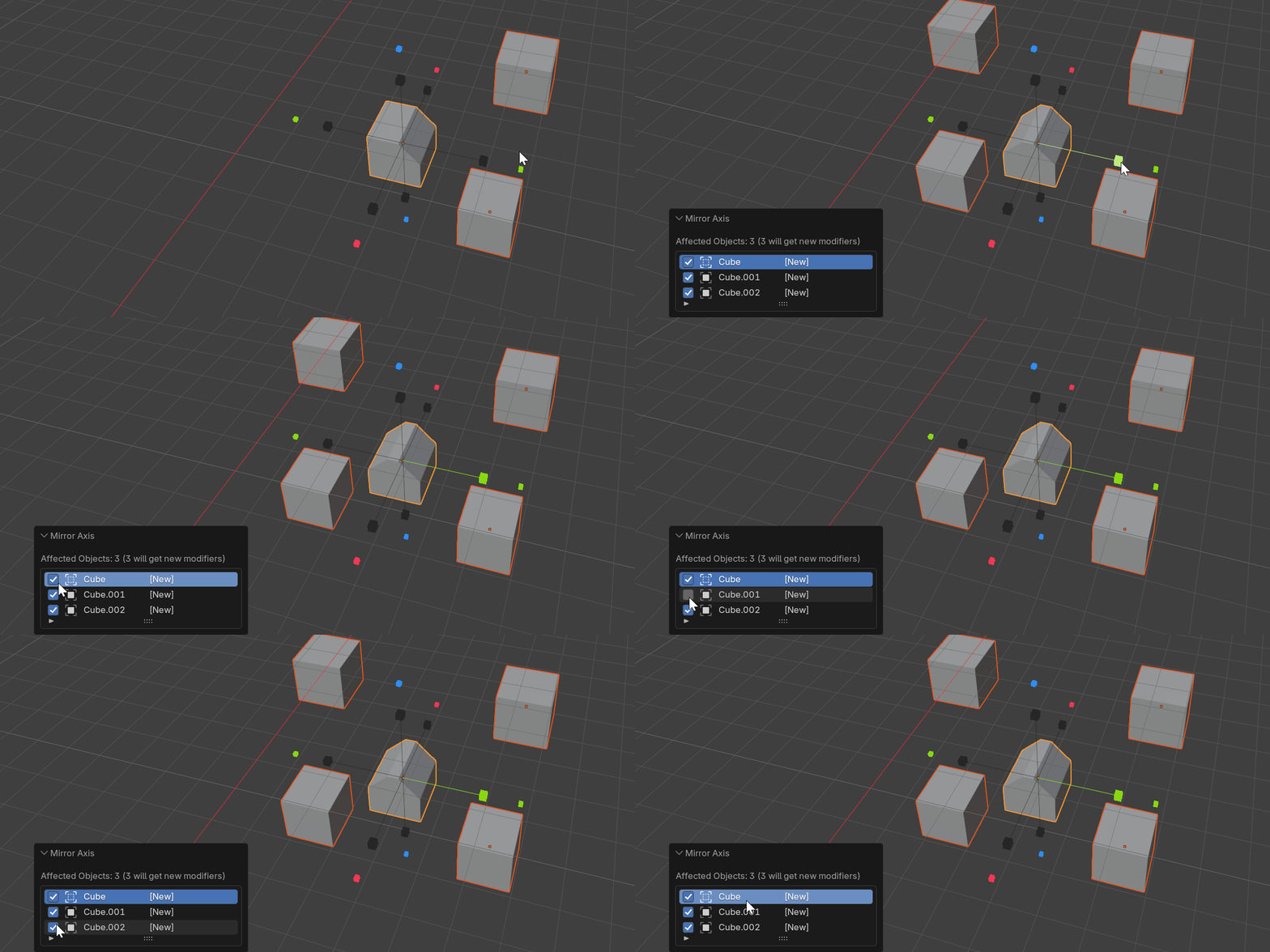
Every gizmo click runs an undoable operator that opens a redo (operator) panel. The panel lists every affected object as a checklist, tagged:
- [New] — the object will get a brand-new modifier.
- [Edit] — the object already has a modifier that will be changed.
Untick any object to exclude it from the operation.
Next
Continue to the Gizmo Interface to learn what each arrow and box does.