Quick Start
Your first mirror in about two minutes. This walks you through both modes so you can feel how the Mirror tool behaves.
Before you begin
- Blender 5.0 or newer.
- Rotor installed and enabled (see Installation).
- Press
Alt+Xonce. The viewport switches to the Mirror tool. PressAlt+Xagain to return to your previous tool. If that worked, you’re ready.
Your first mirror (Object Mode)
- Add a mesh. A monkey (Add > Mesh > Monkey) is perfect because it’s asymmetric, so the mirror is obvious.
- Stay in Object Mode with the object selected.
- Press
Alt+Xto activate the Mirror tool.
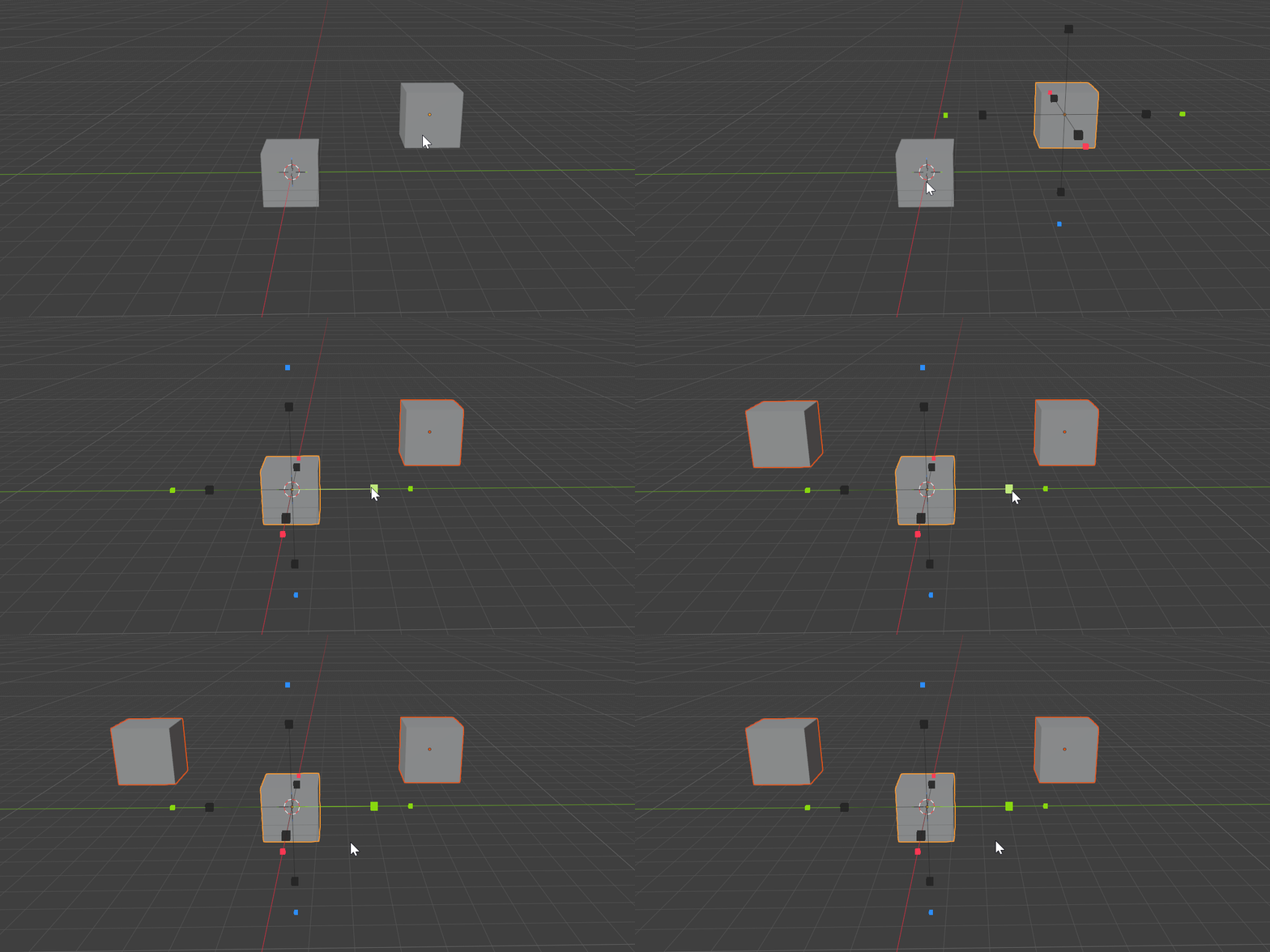
Six colored arrows appear around the object — the gizmo:
- Red = X
- Green = Y
- Blue = Z
Each axis has arrows on both the + and - side. There are also two layers of controls per direction:
- Outer arrows — click one to add a brand-new Mirror modifier along that axis, appended to the end of the modifier stack. Every click stacks another one.
- Inner boxes — click to toggle axes on a single pinned, live Mirror modifier. Clicking an active axis again cycles its bisect/flip, then removes it. This is your one editable mirror.
Click an outer arrow now. The monkey mirrors across that axis.
After the click, the redo (operator) panel in the lower-left lists every selected object as a checklist, tagged [New] or [Edit]. Untick any object you want to exclude from this operation.
When you’re done, Tool Fallback automatically drops you back to the tool you were using before Alt+X, so you don’t have to switch tools manually. It’s on by default.
Try Edit Mode
The Mirror tool works in Edit Mesh too, where it symmetrizes geometry instead of adding modifiers.
Tabinto Edit Mesh on your object.- Press
Alt+Xto activate the Mirror tool. - Select some geometry (a few faces on one side).
A gizmo sits on the mirror plane derived from your selection. Two kinds of controls:
- Handles (the arrows) — mirror the selection only, symmetrizing the selected geometry across that axis.
- Dots (the small boxes) — mirror the full mesh.
Click a handle to mirror just your selection, or a dot to mirror the whole mesh. Turn on Merge if you want the new geometry welded to the original at the seam.
Essential controls
These shortcuts are active while the Mirror tool is the active tool:
| Key | Action |
|---|---|
Alt+X |
Activate / toggle the Mirror tool |
| Click arrow or handle | Run the mirror |
Q |
Cycle Orientation to the next option |
E |
Cycle Pivot to the next option |
Space |
Pick a Custom plane (interactive picker) |
Esc |
Return to your previous tool |
Tips
- The Pivot sets where the mirror plane passes through — the object origin (default) is the mirror center, so place origins deliberately.
- Start with single-axis mirrors. Build up compound results by stacking with the outer arrows.
- Use Orientations to control which axes the plane uses, and Pivots to control where it sits.
- Need an arbitrary angle? Hit
Spaceand pick a plane off any surface — see Custom Plane.
Next
Continue to the Tool Interface for a full tour of the header settings and popovers.